IndiaMART Lead Manager is where every buyer enquiry, buy lead and call lead from your IndiaMART seller account ends up. It works well for reading leads, but it is not built to run a sales team. Leads sit in one login, follow-ups live in someone's notebook, and the buyer who enquired at 9 pm gets a call the next afternoon, after two other suppliers have already quoted.
This guide shows how to connect IndiaMART Lead Manager to a CRM so every lead arrives automatically, gets an owner and a follow-up date, and is tracked until it becomes an order or a clear no. You will learn the difference between IndiaMART's Pull API and Push API, where to find the CRM key, which fields come across, how to fix leads that stop arriving and how to follow up fast.
What Is IndiaMART Lead Manager?
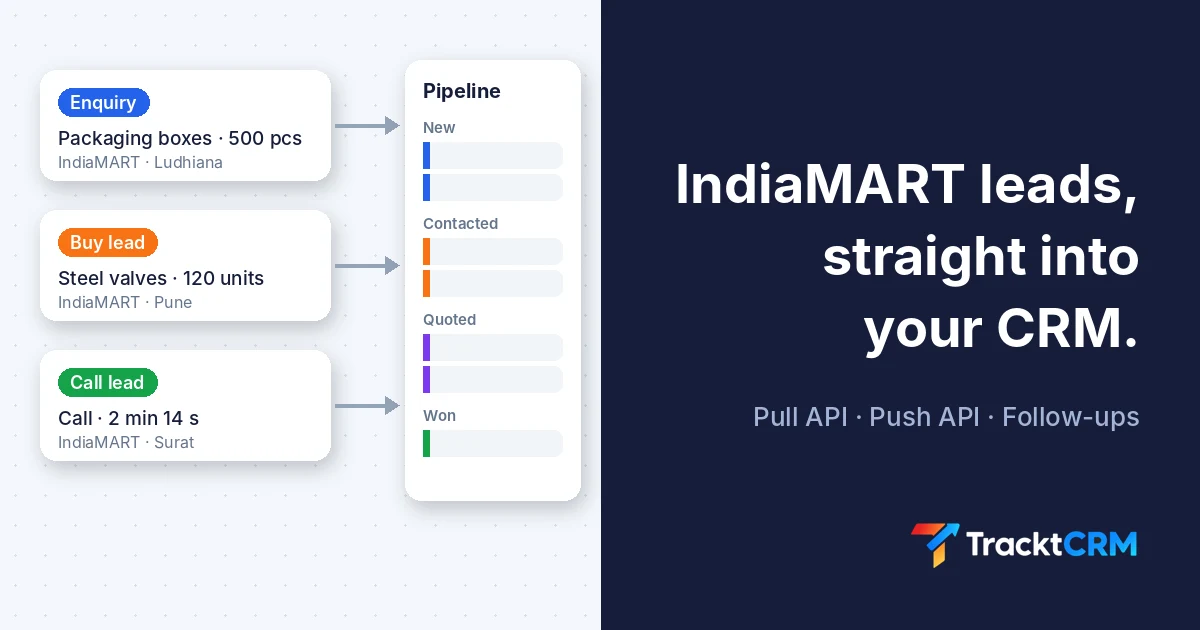
IndiaMART Lead Manager is the lead inbox inside your IndiaMART seller account. It collects three kinds of leads:
| Lead type | What it is | Typical next step |
|---|---|---|
| Direct enquiry | A buyer sends an enquiry to your catalogue or product page | Call back and send a quote |
| Buy lead | A buyer requirement you consume from IndiaMART's buy leads | Call quickly, because other sellers see it too |
| Call lead | A buyer calls the number shown on your listing | Log the call outcome and follow up |
Inside IndiaMART Lead Manager you can read each lead, reply, add notes and export a list. What it cannot do well is manage a team: assign leads by rules, remind a salesperson to follow up on day 2 and day 5, show a manager which leads are untouched, or put IndiaMART leads next to your Justdial, website and WhatsApp leads in one pipeline. That is what a CRM is for. If you are new to CRMs, read what is CRM first.
Why Move Leads From IndiaMART Lead Manager Into a CRM?
Buyers contact more than one supplier
An IndiaMART buyer looking for packaging boxes or industrial valves rarely asks one seller. They send the same requirement to several suppliers and usually go with whoever replies with a clear price first. Every hour you wait gives a competitor a head start.
Speed matters well beyond IndiaMART. In a study published in Harvard Business Review, researchers analysed 1.25 million online leads across 42 companies. Firms that contacted a lead within an hour were nearly seven times as likely to qualify it as firms that waited even one hour longer. IndiaMART leads behave the same way: the first useful reply wins most of the attention.
Copy-paste loses leads
When someone downloads leads from IndiaMART Lead Manager into Excel once a day, three things go wrong:
- Delay. A lead from the morning gets called in the evening, or the next day.
- Missed leads. Weekend and late-night enquiries are skipped when the sheet is not updated.
- No follow-up history. Nobody knows who called, what price was quoted or when to call back.
One view of every lead source
Most Indian B2B sellers do not depend on IndiaMART alone. Leads also come from Justdial, Google Ads lead forms, the website, trade shows and WhatsApp. A CRM puts them in one list with the source saved on each lead, so you can compare which channel brings orders, not just enquiries. Our guide to sales KPIs shows how to measure conversion rate by lead source.
How the IndiaMART Lead Manager Integration Works
IndiaMART offers two official ways to send IndiaMART Lead Manager data to a CRM.
| Pull API | Push API | |
|---|---|---|
| Who starts the transfer | Your CRM asks IndiaMART for new leads | IndiaMART sends each new lead to your CRM |
| What you set up | A CRM key generated in Lead Manager | A webhook URL from your CRM, added in IndiaMART |
| Speed | Every few minutes, depending on the CRM | Close to real time |
| Old leads | Can fetch the past 365 days, up to 7 days per request | New leads only |
| Best for | Most small and mid-size sellers | Teams that need instant alerts or build their own system |
According to IndiaMART's help centre, Pull API leads cover the past 365 days, with a maximum of 7 days per request. After you generate a new key, older data can take up to 24 hours to appear. A Pull API key expires after 7 consecutive days of inactivity, so if your CRM stops pulling for a week, you need to generate a fresh key.
Many CRMs, including TracktCRM, support both methods. For most businesses the Pull API with a CRM key is the simplest choice, because there is nothing to host and you can backfill recent leads.
How to Connect IndiaMART Lead Manager to a CRM (Step by Step)
These steps follow the menu path in IndiaMART's own help centre. IndiaMART updates its seller panel from time to time, so the labels may shift slightly.
Step 1: Generate your CRM key in IndiaMART Lead Manager
- Log in to seller.indiamart.com.
- Open IndiaMART Lead Manager (the Lead Manager section).
- Open the menu (the three-line icon) and click Import/Export Leads.
- Choose Pull API.
- On the Pull API Integration page, click Generate Key if there is no active key, then copy it.
Treat the key like a password. Anyone who has it can read your IndiaMART leads. Do not paste it in WhatsApp groups or email threads.
If you prefer the Push API, IndiaMART has a separate Push API Integration page in IndiaMART Lead Manager where you paste the webhook URL your CRM gives you.
Step 2: Add the key to your CRM
Open your CRM's IndiaMART integration and paste the key. In TracktCRM:
- Go to Integrations → IndiaMART.
- Choose Pull with CRM key (recommended).
- Paste the key from IndiaMART Lead Manager.
- Choose where new leads go: the pipeline, the stage and the lead owner.
TracktCRM then pulls enquiries, buy leads and call leads every 10 minutes. You can see the last sync time, the status and how many leads arrived today, and you can pause, resume, edit or disconnect the source.
Step 3: Map the fields
IndiaMART sends a standard set of fields with every lead. Most CRMs map IndiaMART Lead Manager fields automatically. Check that these land in the right place:
| IndiaMART field | What it contains | CRM field |
|---|---|---|
| SENDER_NAME | Buyer's name | Lead name |
| SENDER_MOBILE | Buyer's mobile number | Phone |
| SENDER_EMAIL | Buyer's email | |
| SENDER_COMPANY | Buyer's company | Company |
| SENDER_CITY, SENDER_STATE, SENDER_PINCODE | Location | City, state, PIN code |
| QUERY_PRODUCT_NAME | Product the buyer asked about | Product or deal title |
| QUERY_MESSAGE | The buyer's requirement | Notes or description |
| QUERY_MCAT_NAME | IndiaMART category | Category or tag |
| QUERY_TYPE | Enquiry, buy lead or call | Lead type or tag |
| QUERY_TIME | When the lead arrived | Created date |
| UNIQUE_QUERY_ID | IndiaMART's ID for the lead | Reference ID, used to stop duplicates |
| RECEIVER_CATALOG | Which of your IndiaMART catalogues received it | Source detail |
| CALL_DURATION, RECEIVER_MOBILE | Call length and the number that took it (call leads) | Call notes |
Field names come from IndiaMART's help centre article on the IndiaMART Lead Manager APIs. The UNIQUE_QUERY_ID is important: a good CRM uses it to make sure the same lead is never created twice.
Step 4: Set assignment rules
Decide who gets each IndiaMART lead before the first one arrives:
- One salesperson if you are a small team.
- Round robin if several people share IndiaMART leads equally.
- By product or category if different people handle different product lines.
- By city or state if you have regional sales staff.
Step 5: Test with a real enquiry
Ask a colleague to send an enquiry to one of your IndiaMART products, then wait for the next sync. Check that the lead appears in the right stage, with the right owner, product name and phone number. Fix the mapping now, not after 200 leads have arrived in the wrong place.
Fix: IndiaMART Lead Manager Leads Not Coming Into the CRM
If leads stop arriving, work through this list in order.
| Problem | Likely cause | Fix |
|---|---|---|
| No leads at all after setup | Wrong or incomplete key copied | Copy the key again from IndiaMART Lead Manager and paste it fresh |
| Leads stopped after working for weeks | Key expired after 7 days of inactivity, or someone generated a new key | Generate a new key in IndiaMART and update it in the CRM |
| Old leads missing | Older data takes time after a new key | Wait up to 24 hours, then run a backfill or import an export file |
| Only some leads arrive | A filter, paused source or wrong pipeline in the CRM | Check the integration status and where new leads are routed |
| Push API leads missing | Wrong webhook URL, or the URL changed | Copy the webhook URL from the CRM again and update it in IndiaMART |
| Duplicate leads | Same buyer enquired twice, or duplicate check is off | Turn on duplicate detection by phone number and UNIQUE_QUERY_ID |
In TracktCRM, open the IndiaMART source and check that it is not paused or showing an error, that the key is current, and that the field mapping is correct. If the key has expired, use Update key with a fresh one from IndiaMART.
How to Convert More IndiaMART Leads Into Orders
Getting leads out of IndiaMART Lead Manager and into a CRM is half the job. Here is a simple routine that turns more of them into orders.
1. Call within minutes, not hours
Set your CRM to notify the lead owner the moment an IndiaMART lead arrives. For buy leads especially, the buyer is comparing several sellers at the same time. A quick, polite call that confirms the requirement already puts you ahead.
2. Qualify with four questions
On the first call, find out:
- Exact product and specification (size, grade, material, model).
- Quantity and whether it is a one-time or repeat order.
- Delivery location and the date they need it.
- Who decides and how they compare suppliers.
Write the answers in the lead notes so anyone on your team can pick it up. Our sales call scripts include an IndiaMART callback script you can copy.
3. Send the quote on WhatsApp and email the same day
Most IndiaMART buyers in India prefer a short WhatsApp message with the price, MOQ and delivery time, followed by a proper PDF quote on email. Keep both linked to the lead so the history is in one place. See our WhatsApp follow-up messages for ready-to-send templates.
4. Follow a fixed follow-up cadence
| Day | Action |
|---|---|
| Day 0 | Call within minutes, send quote on WhatsApp and email |
| Day 1 | Short WhatsApp: "Did you get a chance to see the quote?" |
| Day 3 | Call: answer questions, offer an option on price or delivery |
| Day 7 | Share a relevant photo, sample or customer example |
| Day 14 | Final check-in, then move to a monthly nurture list |
A CRM creates these follow-up tasks automatically, so nobody has to remember them. Our sales follow-up strategy explains how to adjust the gaps for hot, warm and cold leads.
5. Record why you lost
When a buyer goes with someone else, record the reason: price, delivery time, specification, no response. After a month you will see whether you are losing on price or simply on speed, and you can fix the right problem.
6. Measure IndiaMART against your other sources
Compare IndiaMART with Justdial, your website and ads on three numbers: leads, orders won and average order value. IndiaMART is often worth the subscription, but only the data in your CRM can prove it.
IndiaMART Plus Justdial and Other Lead Portals
If you also sell through Justdial, property portals or Google Ads lead forms, connect them to the same CRM. Every lead then follows the same assignment rules and follow-up cadence, and you can compare sources fairly.
TracktCRM connects IndiaMART, Justdial, 99acres, MagicBricks, Housing.com, OLX, Google Ads lead forms, website forms and Google Sheets. Justdial and the property portals use a unique link and an API key that you paste into the portal. See all TracktCRM integrations for the full list.
How TracktCRM Handles IndiaMART Leads
- Automatic capture. Enquiries, buy leads and call leads are pulled from IndiaMART Lead Manager every 10 minutes with your CRM key, or pushed to a webhook URL.
- Routing. Choose the pipeline, stage and lead owner for every new IndiaMART lead.
- Follow-up reminders. Automations create tasks and send reminders so no buyer goes cold. See sales automation.
- One lead view. Calls, notes, WhatsApp chats and emails stay on the lead. See lead management.
- Source reports. Every lead keeps its source, so you can compare IndiaMART with your other channels in reporting and analytics.
- Click-to-call. Connect TeleCMI, Exotel, FreJun or Twilio to call from the CRM and log the outcome and recording on the lead.
Lead portals such as IndiaMART use integration slots: the Free plan includes 0, Pro includes 2, Premium 4 and All-in-One 8. See pricing for the current plans.
Frequently Asked Questions
What is IndiaMART Lead Manager?
IndiaMART Lead Manager is the section of the IndiaMART seller account where your buyer enquiries, purchased buy leads and call leads are listed. You can reply, add notes and export leads from it, and you can connect it to a CRM through IndiaMART's Pull API or Push API.
How do I connect IndiaMART to my CRM?
Log in to seller.indiamart.com, open Lead Manager, open the menu, choose Import/Export Leads and then Pull API, and generate a key. Paste that key into your CRM's IndiaMART integration and choose the pipeline, stage and owner for new leads. Send yourself a test enquiry to check it works.
What is the difference between the IndiaMART Pull API and Push API?
With the Pull API, your CRM asks IndiaMART for new leads at a fixed interval using your CRM key. With the Push API, IndiaMART sends each new lead to a webhook URL that your CRM gives you. Pull is easier to set up, and it can also fetch older leads. Push is closer to real time.
Why are my IndiaMART leads not coming into the CRM?
The most common reasons are an expired key, a new key generated in IndiaMART that disabled the old one, a paused integration in the CRM or a wrong webhook URL. IndiaMART says a Pull API key expires after 7 days of inactivity, so generate a fresh key and update it in the CRM.
Can I import old IndiaMART leads into a CRM?
Yes. According to IndiaMART's help centre, the Pull API can fetch leads from the past 365 days, with a maximum of 7 days per request. Older data may take up to 24 hours to appear after you generate a new key. You can also export leads from Lead Manager and import the file into your CRM.
Can I connect more than one IndiaMART account to one CRM?
Yes, most CRMs allow several IndiaMART accounts, each with its own key. IndiaMART includes a RECEIVER_CATALOG field in each lead, so you can see which of your catalogues the enquiry came from and route it to the right team.
How fast should I reply to an IndiaMART enquiry?
As fast as possible, ideally within minutes. Buyers on IndiaMART usually contact several suppliers for the same product, and research on online leads found that firms replying within an hour were far more likely to qualify the lead than firms that waited longer.
Does TracktCRM work with IndiaMART?
Yes. TracktCRM pulls IndiaMART enquiries, buy leads and call leads every 10 minutes using your CRM key, or accepts them on a webhook URL. Each lead lands in the pipeline and stage you choose and is assigned to an owner. Lead portals use integration slots: Pro includes 2, Premium 4 and All-in-One 8.
Sources
Sources checked on . Plans and prices change, so confirm current details on these links before you buy.